
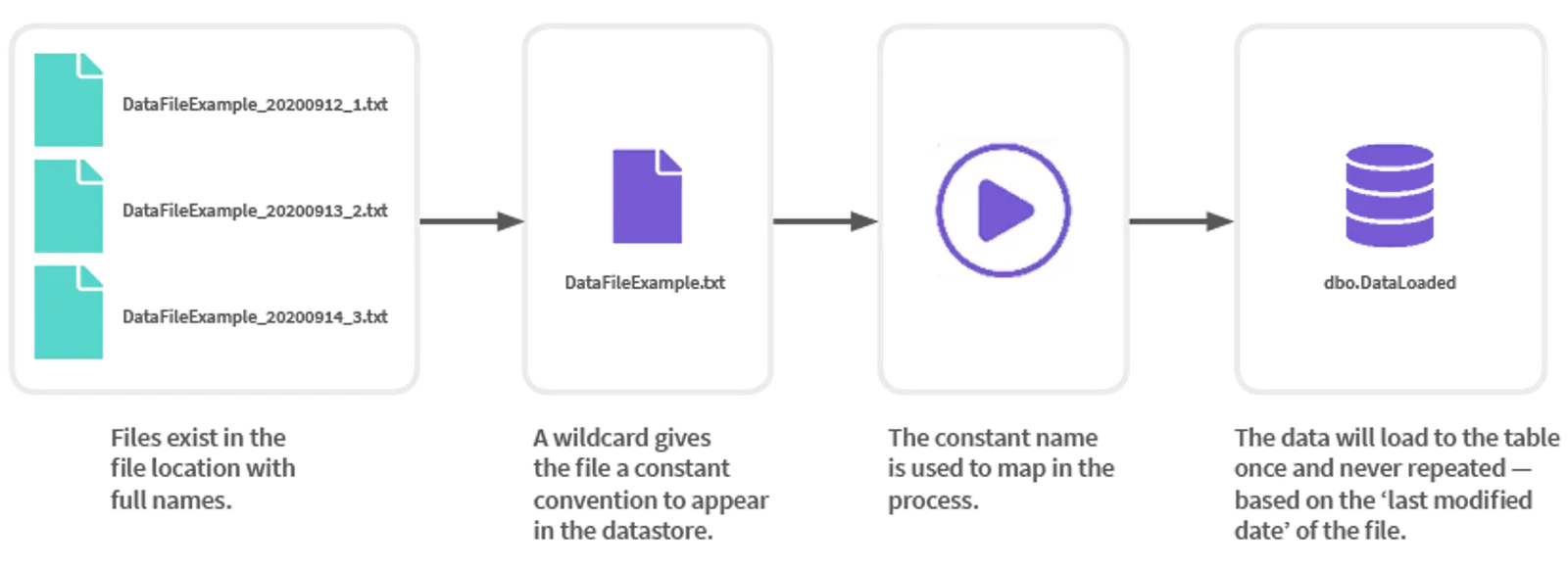
Once a process is run on a file (determined by the LastModifiedDate) it cannot process again, preventing any data loads duplicated to your source.
If you need to process a file again, simply edit it so that the LastModifiedDate is changed — then the process will identify the file as new and will transfer the data again.
Wildcard Symbols
[ ] Within the brackets the type of characteristics expected are specified, for example, [0–9] means you can see any numbers within that range, [A–Z] allows any alphabetical characters within that range.
{ } Within the braces, the first number denotes the maximum amount of characters, the second number denotes the maximum number of characters expected.
^ Literal to start or end an expected string.
Create a Wildcard
- Create a CSV Datastore — it must be a source.
- Note that in the file path, the files can be seen using their complete filename convention.
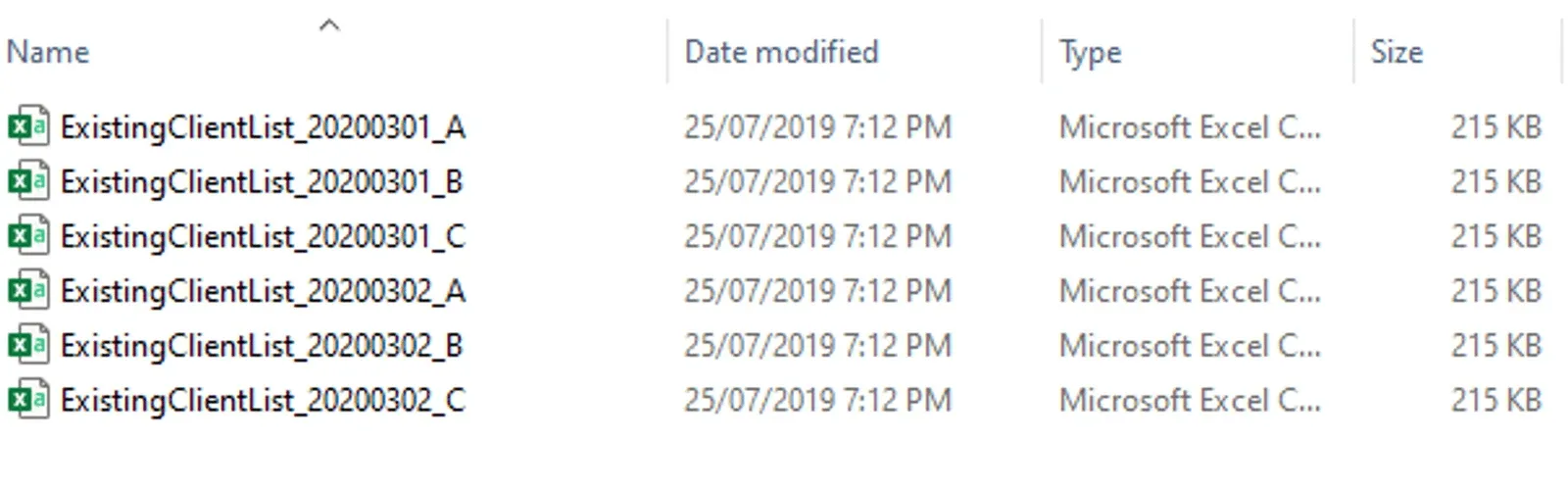
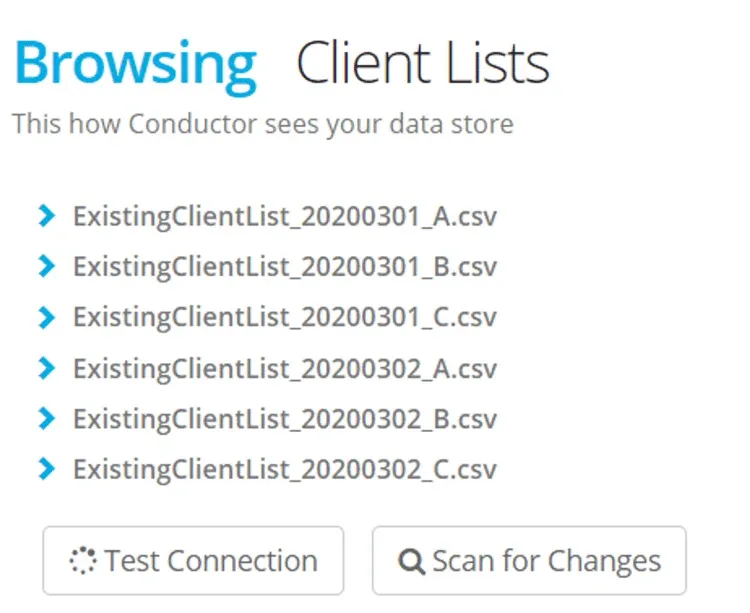
3. In the datastore go to the last tab — Filename Wildcards.
4. Click + New Wildcard
5. Give your filename an alias — this is how the file will appear in the Datastore.
![Filename wildcards tab with alias ClientList.csv, value ^ExistingClientList_[0-9]{8}_[A-Z]{1}.csv, + New Wildcard and Save buttons](/_astro/datastore-wildcards-4.D0iY0Cs7_ZKYAhB.webp)
6. In the value field save an expression that allocates variables [0-9] for numbers and [A-Z] for letters. Any other characters are expressed as they appear. End the string with the file extension as it appears in windows explorer. Select Save.
7. Click Scan > select Save
Your datastore now appears with a constant filename.
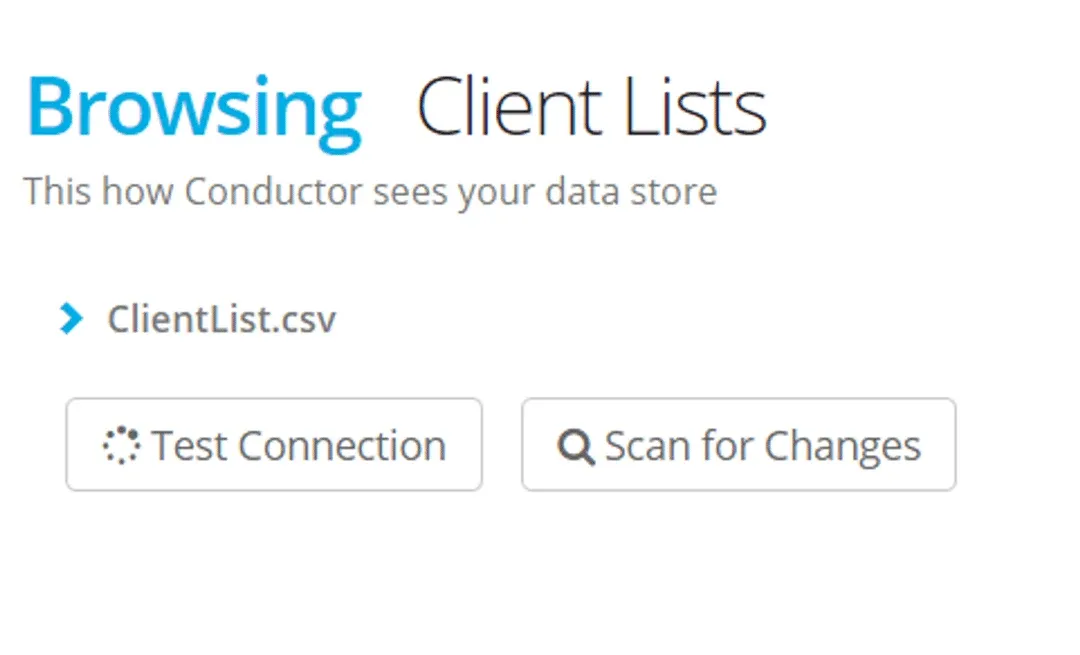
If a process executes and all the files have already transferred the error message will say “your datastore is empty”.
If a process is created using a filename and then subsequently a wildcard is applied - your datastore will scan with an error saying that the file no longer exists but is being used in a process. To fix - just recreate a process using the wildcard filename and delete the previous one.
Stuck on this step? Email support@eight-wire.com